The AI photo booth trend is everywhere right now. A vintage metal machine prints out a photo strip of your face, frame by frame, in a short video. The problem: the version going viral on TikTok and Instagram requires a Canva AI Pro subscription that most people do not have. MuleRun Chat does the same thing on a free plan. Upload 1 to 4 photos, and it generates both the photo strip and the video automatically.
No prompting required. You upload your photos, and the template handles the rest: it composites your photos into a vintage photo strip using GPT Image 2, then generates a video of the strip rolling out of a brushed-metal booth using Happy Horse.
What Is the Canva AI Photo Booth Trend?
The Canva AI photo booth trend is a viral social media format where users upload selfies and get back a short video of a vintage photo booth machine printing out a strip of their photos. The strip feeds out frame by frame from a metal slot, mimicking a real coin-operated booth. The format went viral on TikTok and Instagram because the output looks nostalgic and personal. It works for couples, friend groups, solo portraits, and pet photos.
Canva built the original version inside its AI video generator as a Pro plan feature. Users upload a photo, pick a booth style, and the Canva AI video generator produces the clip automatically. The trend spread fast, but the access problem followed: Canva AI requires a paid Pro subscription. The photo booth template is not available on the free tier. This locked out the majority of users who saw the trend and wanted to recreate it.
MuleRun Chat runs the same workflow on its free plan. The template uses two AI models in sequence: GPT Image 2 for the photo composite and Happy Horse for the video generation. You do not need to write any prompts. The template handles the full pipeline from upload to finished video.
How Do You Create an AI Photo Booth Video?
You create an AI photo booth video by uploading 1 to 4 photos into the MuleRun Chat photo booth template. The template runs two steps automatically without any additional input from you.
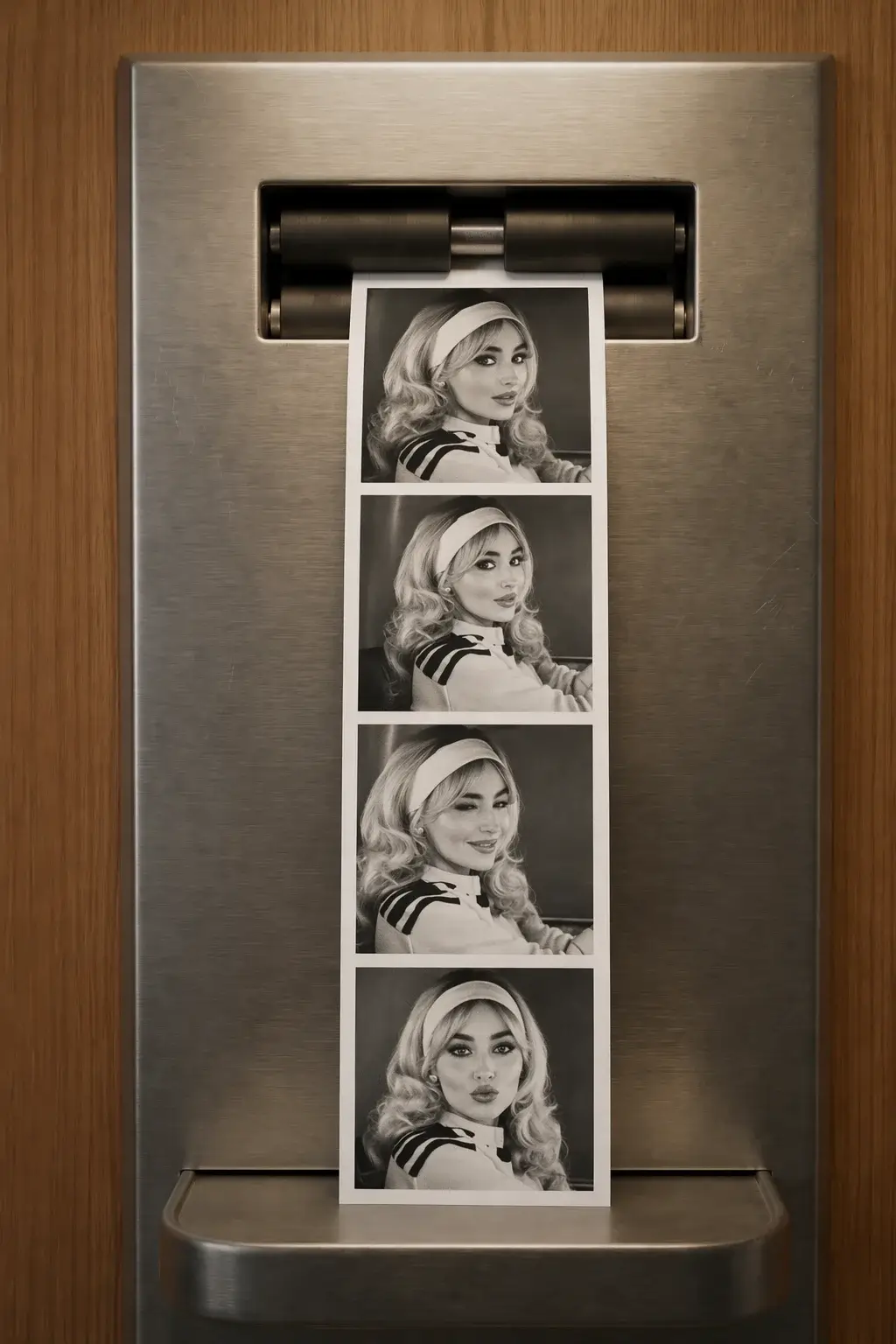
Step 1: Photo Strip Composite
GPT Image 2 takes your uploaded photos and places them into four frames on a vertical photo strip. The strip hangs inside a vintage brushed-metal photo booth machine with visible black rollers at the top and a metal collection tray at the bottom. If you upload fewer than 4 photos, the AI fills the remaining frames with natural variations of what you submitted: a different crop, a slight zoom, or a mirrored angle. The photos look like they were taken in a real booth.
Step 2: Video Generation
Happy Horse takes the composited strip image and generates a short video. The video starts with an empty dispensing slot. After a brief pause, the photo strip begins to emerge from the top, sliding downward through the rollers. Each photo reveals one by one until the full strip hangs in its final position. The camera stays completely still. Only the paper moves.
The entire process runs in one chat session. You upload, the template executes both steps, and you get the finished video. No prompt writing, no editing, no second tool.
How Does the Photo Booth Template Work?
The template handles both steps automatically. You do not need to write any prompts. The system composites your photos into the strip, then generates the video of the strip rolling out of the booth. The image and video prompts are built into the template so the output is consistent every time.
The video uses an image-to-video technique where the composited strip image is treated as the final frame. The model animates backward from an empty booth slot, revealing each photo as the strip feeds out. This creates the realistic printing motion that makes the trend work.
Use the photo booth template to generate yours. Upload your photos and the template runs the full pipeline.
Can You Customize the Photo Booth Style?
You can customize the photo booth by typing additional instructions in the chat after opening the photo booth template. Upload your photos first, let the template generate the default version, then ask for changes in the same session.
Three variations that work:
- Color Tint: ask for a black-and-white strip, a sepia-toned strip, or a strip with a specific color cast
- Frame Decorations: ask for heart borders, star stamps, date stamps, or handwritten-style captions on the strip
- Booth Material: ask for a gold booth, a pink booth, or a weathered vintage booth with scratches and patina
The template carries your previous result forward, so each follow-up instruction refines the output without starting over. You can keep iterating until the style matches what you want.
Start Building
Sign up for free credits and use the photo booth template to create your own AI photo booth video.
Frequently Asked Questions
How Many Photos Do You Need to Upload?
You can upload 1 to 4 photos. If you upload fewer than 4, the AI fills the remaining frames with cropped or mirrored variations of your uploaded photos. Four distinct photos produce the most realistic photo booth strip.
Is This Actually Free?
MuleRun Chat offers a free plan with credits for new users. The photo booth template uses two generations per run (one image, one video), so each photo booth video costs two credits. No subscription is required.
What Is the Difference Between This and the Canva AI Version?
The Canva AI video generator offers a photo booth template inside its Pro plan, which requires a paid subscription. MuleRun Chat runs the same concept on a free plan using GPT Image 2 for the photo composite and Happy Horse for the video. The output format is the same: a short video of a photo strip printing from a vintage booth.
Can You Use This for Couples or Group Photos?
Yes. Upload photos of two people and the AI places them together in each frame of the strip, or alternates between individual shots. Group selfies, couple photos, and solo portraits all work. The AI fits whatever you upload into the four-frame strip layout.
What Video Format Does It Output?
The output is an MP4 video. You can download it directly from the chat and share it to TikTok, Instagram Reels, or any social platform without conversion.