A parent wanted to introduce their eight-year-old to coding but found existing apps either too rigid, locked behind subscriptions, or too advanced for a beginner. Instead of settling, they opened MuleRun Chat and typed a single prompt describing interactive programming lessons for kids. MuleRun Chat generated a complete six-lesson interactive coding course covering sequencing, loops, conditionals, variables, and Python, then deployed it to a live URL their child could open in any browser.
Use the prompt template here.
What Is Coding for Kids and Why Should Children Start Early?
What is coding for kids? It is the practice of teaching children foundational programming logic through interactive, visual tools rather than written syntax. Instead of memorizing semicolons and brackets, kids click buttons, drag blocks, and watch characters respond to their instructions. Each interaction maps to a real programming concept, but the experience feels like a game.
Starting early matters because coding teaches more than programming. Sequencing builds reading comprehension. Conditionals strengthen decision-making. Loops introduce pattern recognition. Variables teach kids to organize and label information. Children who practice these coding activities for kids develop computational thinking that transfers across every subject.
The challenge for parents has always been access. Most coding platforms require subscriptions, app installations, or age-inappropriate interfaces. The course featured in this blog runs in any browser, requires no account, and covers six progressive lessons that take a child from “what is a computer instruction?” to “write and run a Python program.”
What Coding Activities for Kids Does This Interactive Course Include?
The parent’s single prompt generated six lessons, each teaching a core programming concept through hands-on interaction. Every lesson includes an interactive exercise, an explanation of the concept, and a badge that kids earn by completing the activity. Here is what each lesson covers.
Lesson 1: What Is Coding?
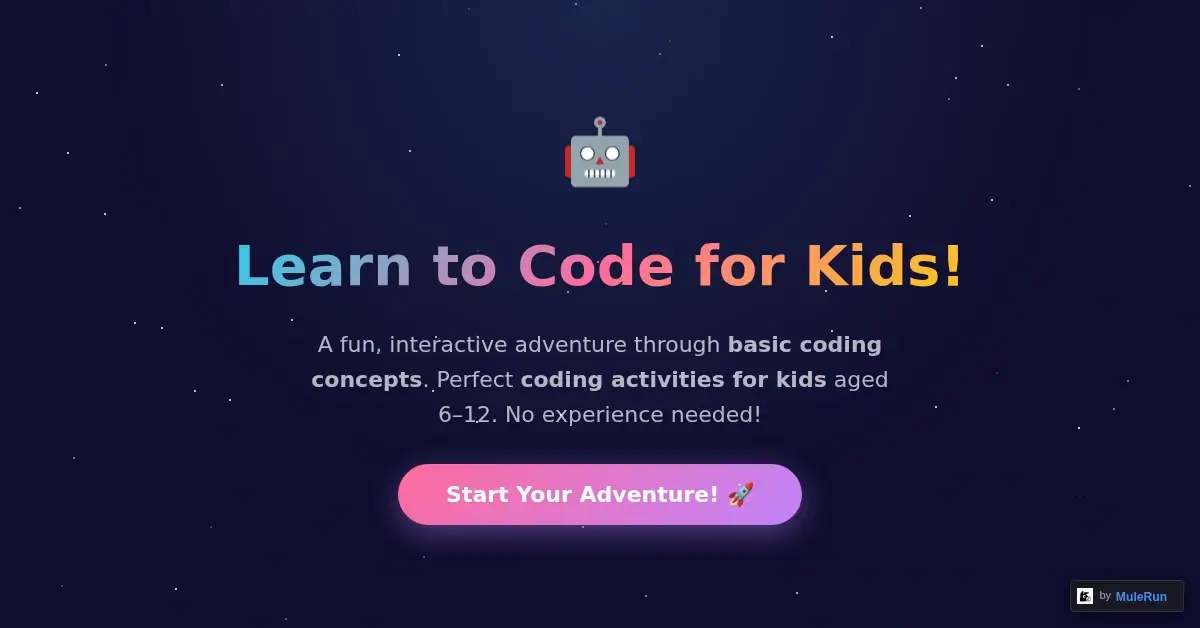
The first lesson answers the most basic question: what is coding for kids? Kids see a robot on a grid with three collectible items. Four buttons let them give the robot instructions: move right, move up, move down, and reset. Click a button and the robot responds immediately.
That single interaction is the entire lesson. You just gave instructions to a computer, and that is coding. The lesson explains that every app, game, and website is built from simple instructions like these. For parents wondering how to teach kids coding, this is the entry point: one button click that makes the abstract tangible.
Lesson 2: Sequences
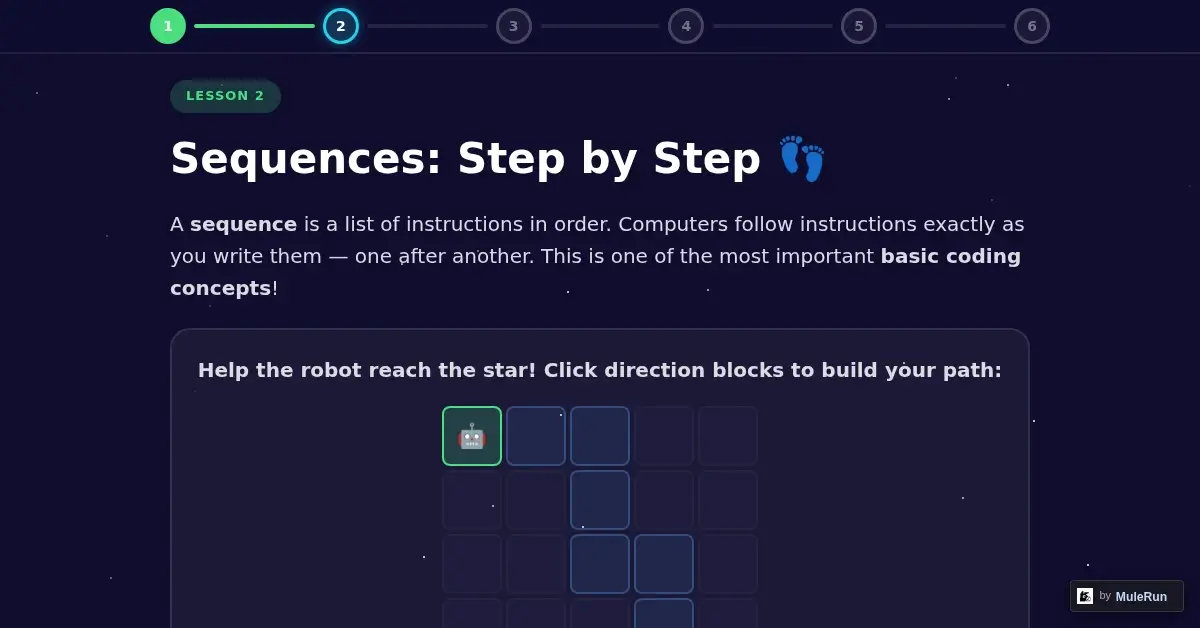
Lesson 2 introduces sequencing: the concept that instructions run in order. Kids build a path by clicking direction blocks (right, down, up, left) to guide a robot from start to finish through a grid. Press “Run Code” and the robot follows the exact sequence, step by step.
The key insight happens when kids rearrange their blocks and see the robot take a completely different path. Order matters. Swap two instructions and the outcome changes. That realization is the foundation of debugging, and kids discover it through play rather than explanation.
Lesson 3: Loops
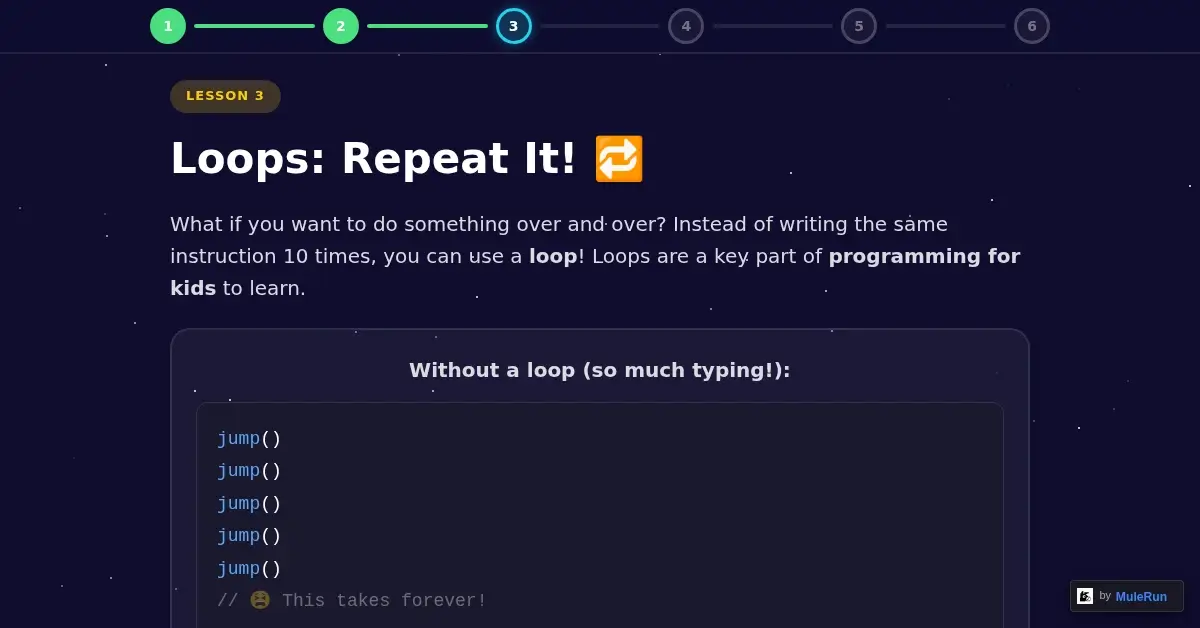
Loops are where coding starts saving time. Lesson 3 shows two versions of the same program side by side: five separate jump() commands versus a single loop that repeats jump() five times. Kids adjust a slider to change the repeat count and watch the robot jump that many times.
The visual comparison makes the concept click instantly. Writing jump() five times is tedious. Writing it once inside a loop is efficient. Imagine drawing 100 stars: two lines of code instead of 100. This is one of the most important basic coding concepts, and the game format makes it intuitive for any child.
Lesson 4: Conditionals
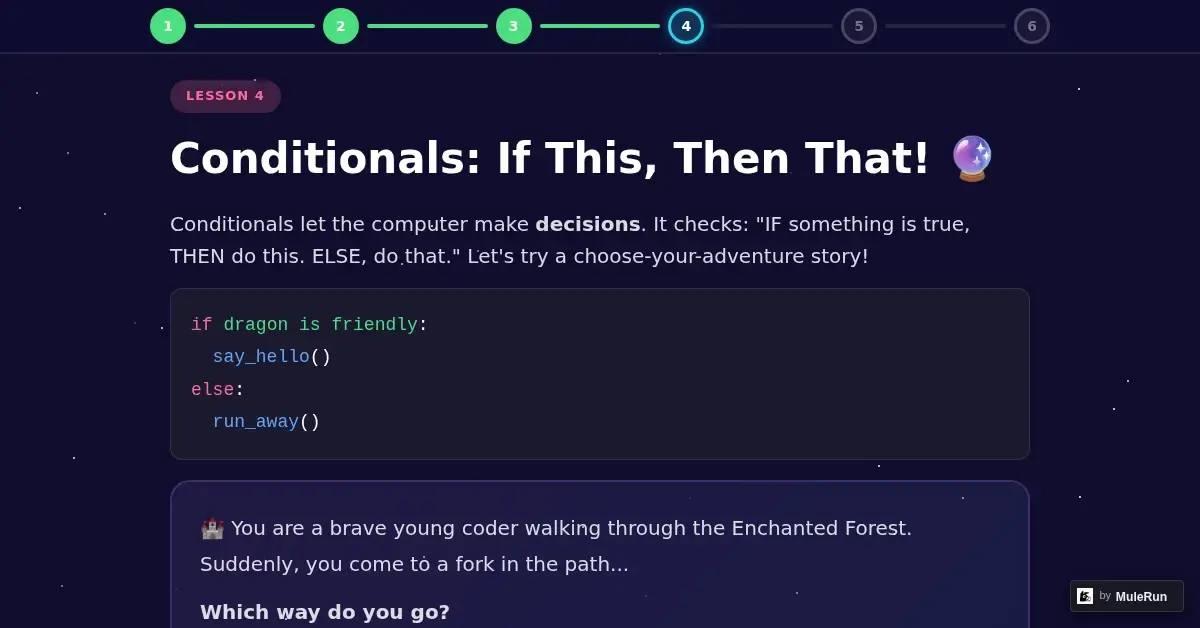
Conditionals teach decision-making. Lesson 4 presents a code block: if the dragon is friendly, say hello; else, run away. Then kids play a choose-your-adventure story set in an Enchanted Forest. Each choice branches the narrative: take the left path through glowing trees, or the right path toward the mountain.
Every choice the child makes is an if/else conditional in action. The lesson connects the game mechanic to the programming concept directly: this is how games, apps, and websites respond to what you do. Understanding what is coding for kids means learning to think in choices and consequences.
Lesson 5: Variables
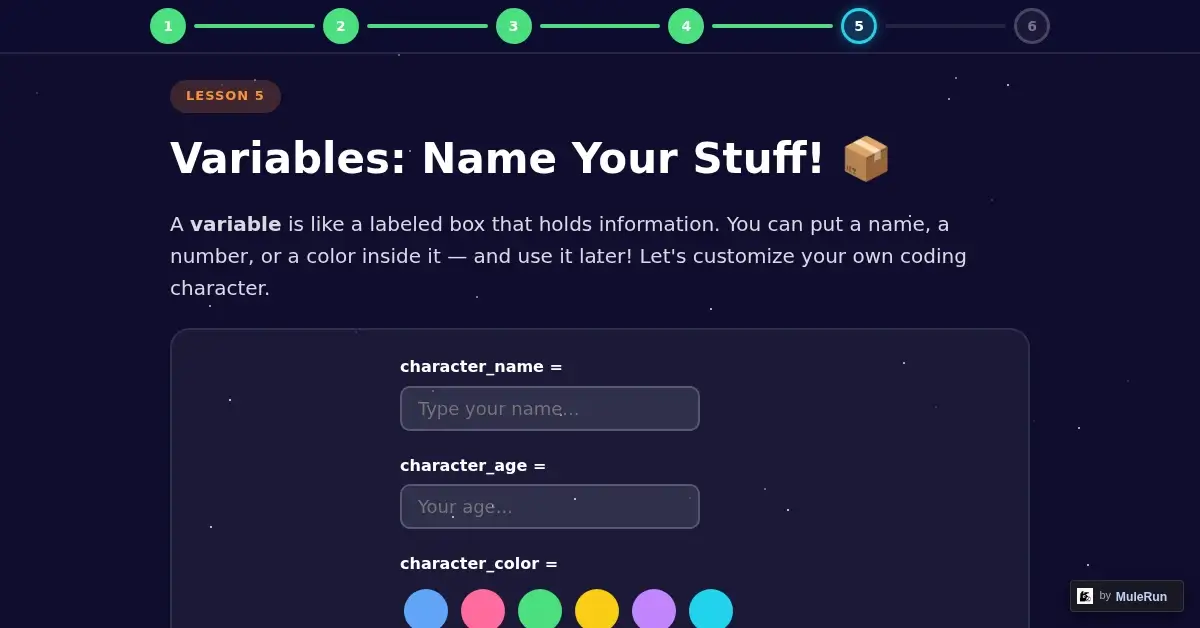
Variables are labeled boxes that hold information. Lesson 5 lets kids create their own coding character by filling in four variables: character_name, character_age, character_color, and character_emoji. Pick an emoji, type a name and age, choose a color, and watch the character card update in real time.
The code panel shows exactly what happens: character_name = “Luna”, character_age = 9, character_color = “purple”. Kids see their choices stored as variables and used to build something visible. Every game stores information this way: player names, scores, and levels.
Lesson 6: Your First Python Program
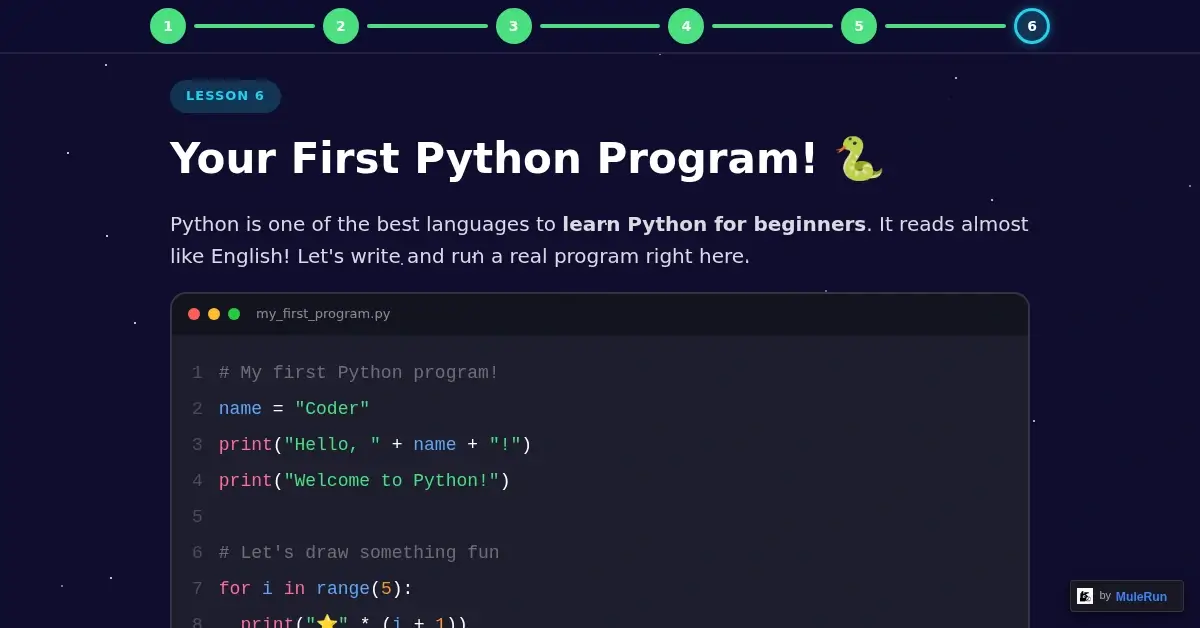
The final lesson transitions from visual interactions to real code. Kids see a Python program with line numbers, syntax highlighting, and a Run button. The default program prints a greeting and draws a pattern of stars using a for loop. Kids customize three variables: their name, the number of rows, and the symbol.
Press “Run Program” and the output appears below: “Hello, Luna! Welcome to Python!” followed by an expanding star pattern. Kids just wrote and ran a real Python program using variables, loops, and the print() function. The progression from clicking buttons in Lesson 1 to editing Python in Lesson 6 happens naturally, one concept building on the last.
How to Teach Kids Coding with AI Instead of Fixed Apps?
Most coding platforms for kids are fixed products. You use the lessons they built, in the order they chose, covering the topics they decided on. If the difficulty curve is wrong for your child, you cannot adjust it. If your child is interested in dinosaurs instead of robots, you cannot change the theme. Platforms like Scratch and Code.org are valuable resources, but they offer the same experience to every learner.
MuleRun Chat works differently. You describe the coding lesson you want, and it generates the entire interactive page. The parent who built this course typed one prompt describing six progressive lessons with visual programming concepts and game-like experiences. MuleRun Chat generated the full course and deployed it to a live URL.
Here is how parents and teachers can build their own coding activities for kids:
- Describe the lesson: type a prompt like “Create a coding game for my 7-year-old that teaches loops using a dinosaur theme with three difficulty levels”
- Get a playable page: MuleRun Chat generates a complete interactive lesson on a .mule.page link that works on any device with a browser
- Share it instantly: send the link to your child, a classroom, or another parent, no app downloads or accounts required
- Customize and iterate: change the theme, adjust difficulty, add new concepts, or remove time pressure for younger learners in a follow-up message
A parent homeschooling a five-year-old can request sequencing-only lessons with three levels and a farm theme. A teacher running a coding club for fourth graders can ask for lessons that introduce while loops and functions. The prompt is the curriculum.
Try the prompt template that generated this course here.
What Makes MuleRun Chat Different for Building Coding Games for Kids?
Several tools can help teach kids coding, but few let you build a complete interactive course from a text description. Here is what MuleRun Chat delivered for this parent:
- Six lessons from one prompt: the parent did not write six separate requests; one description produced an entire progressive course with consistent design and badge tracking
- Progressive difficulty built in: the prompt mentioned progressive levels and MuleRun Chat implemented concept scaffolding automatically, from button clicks to Python code
- Instant URL deployment: the lessons went live on mule.page immediately, no hosting setup or app store submission required
- Browser-native: every child opens the same link on any device, whether a school Chromebook, tablet, or phone, no app installation needed
- Safe for kids: no ads, no tracking, no accounts required; the lessons are HTML and JavaScript on a clean page
Parents looking for more educational content built with AI can explore these related resources:
- Coding games for kids: a deep dive into visual block-based coding games built with MuleRun Chat
- Interactive math games: six math games a teacher built from one prompt, covering addition through fractions
- Math tower defense: turn arithmetic into gameplay with a tower defense game built from a text prompt
Start Building Coding Lessons for Your Kids
One parent turned a single prompt into six interactive lessons their child can play today. You can do the same for any coding concept, any age level, any theme your child loves.
Have an idea for a coding lesson, a programming game, or an interactive tutorial? Open MuleRun Chat, describe it, and get started now. Sign up for free.